Team overview
A team in Ideafy is a group of users who collaborate on shared projects through the pool. Teams are the unit of billing, access control, and shared state. This page is the conceptual introduction; later pages in this section dig into specifics (pool, invite, notifications).
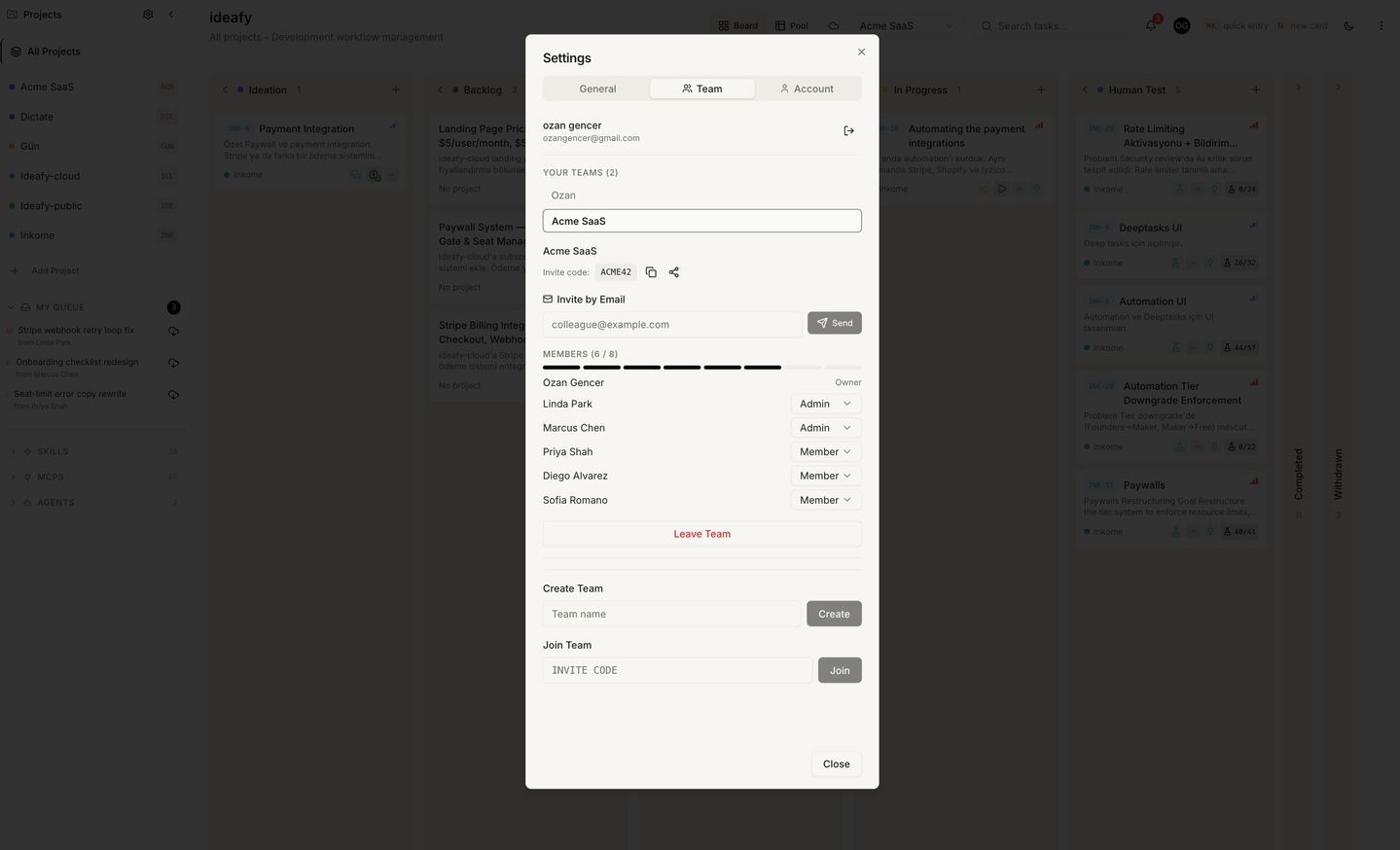
Teams exist only in the Team edition. Public-edition users never see a team.
The data model
- A team has a name, a unique 6-character invite code, a creator, and a set of members
- A team member belongs to one team and has a role:
owner,admin, ormember - A project has an optional
teamId. When set, the project is linked to the team — card mutations sync to the team's pool. Whennull, the project is solo-mode even inside the Team edition - A pool card is a card that lives in Supabase, linked by
sourceCardIdto the local card that originally pushed it
Roles
| Role | Can create team | Can invite | Can remove members | Can manage billing | Can reassign pool cards |
|---|---|---|---|---|---|
| Owner | — (first member at team creation) | ✓ | ✓ | ✓ | any card |
| Admin | — | ✓ | ✓ | — | any card |
| Member | — | — | — | — | claim unassigned, unclaim own, hand off their own assignments |
A member can hand off a card they currently hold — claim, reassign to a teammate, or reassign back to unassigned. Reassign is no longer admin-gated for your own work. See pool mechanics.
There's always exactly one implicit owner per team — the user who created it. If the owner leaves, the team doesn't transfer automatically; the team (and its pool) is deleted. You can avoid this by promoting an admin to owner before leaving (via the team settings UI).
Creating a team
From any signed-in view:
- Click + Create team in the team switcher
- Enter a team name
- The backend generates an invite code, creates the team, makes you the owner, and starts a 14-day trial subscription automatically (no credit card)
The trial is bound to the team, not to you personally. When it expires, the team drops into a grace period (see Subscription states).
Joining a team
- Click Join team in the team switcher (or open the invite link you received by email)
- Paste the 6-character invite code
- The backend adds you as a member, checks seat limits, and you land on the team's pool view
Invite codes don't expire, but seat limits do enforce: if the team is full, joins are refused until an admin either removes a member or upgrades the plan.
Leaving a team
Settings → Team → Leave team. You're removed as a member. Your local cards stay on your machine — leaving the team only unlinks you from the shared pool, it doesn't delete anything locally.
If you're the last owner when you leave, the whole team is deleted. The backend warns you before this happens.
Linking a project to a team
A project has to be linked to a team for pool sync to work. On an existing project:
- Open the project settings modal
- In the Team dropdown, select a team you belong to
- Save
From that moment on:
- Every MCP mutation on a card in this project fires a sync-card call to Supabase
pool_push,pool_pull,pool_claimbecome available from the agent for cards in this project- The project appears in the pool view when filtered by this team
You can unlink by setting the team back to None. The cards remain but stop syncing.
Solo vs team mode per project
In the Team edition, you can have a mix: some projects linked to a team, others unlinked and local-only. This is useful for:
- A shared codebase plus a personal side project
- Keeping an experimental branch out of the team's view
- Importing a project from another user without joining their team
The UI makes the distinction clear — linked projects show the team name in the sidebar; unlinked projects don't.
What's next
- Team setup — invite flow, seats, member management
- Pool mechanics — how push / pull / claim actually work
- My Queue — your personal inbox inside the pool
- Notifications — in-app bell and email
Prev: Migrate between editions Next: Team setup Up: User guide index