Notifications
Ideafy notifies you when something the team does affects a card you care about. The bell icon in the top bar shows unread count; click it for the popover.
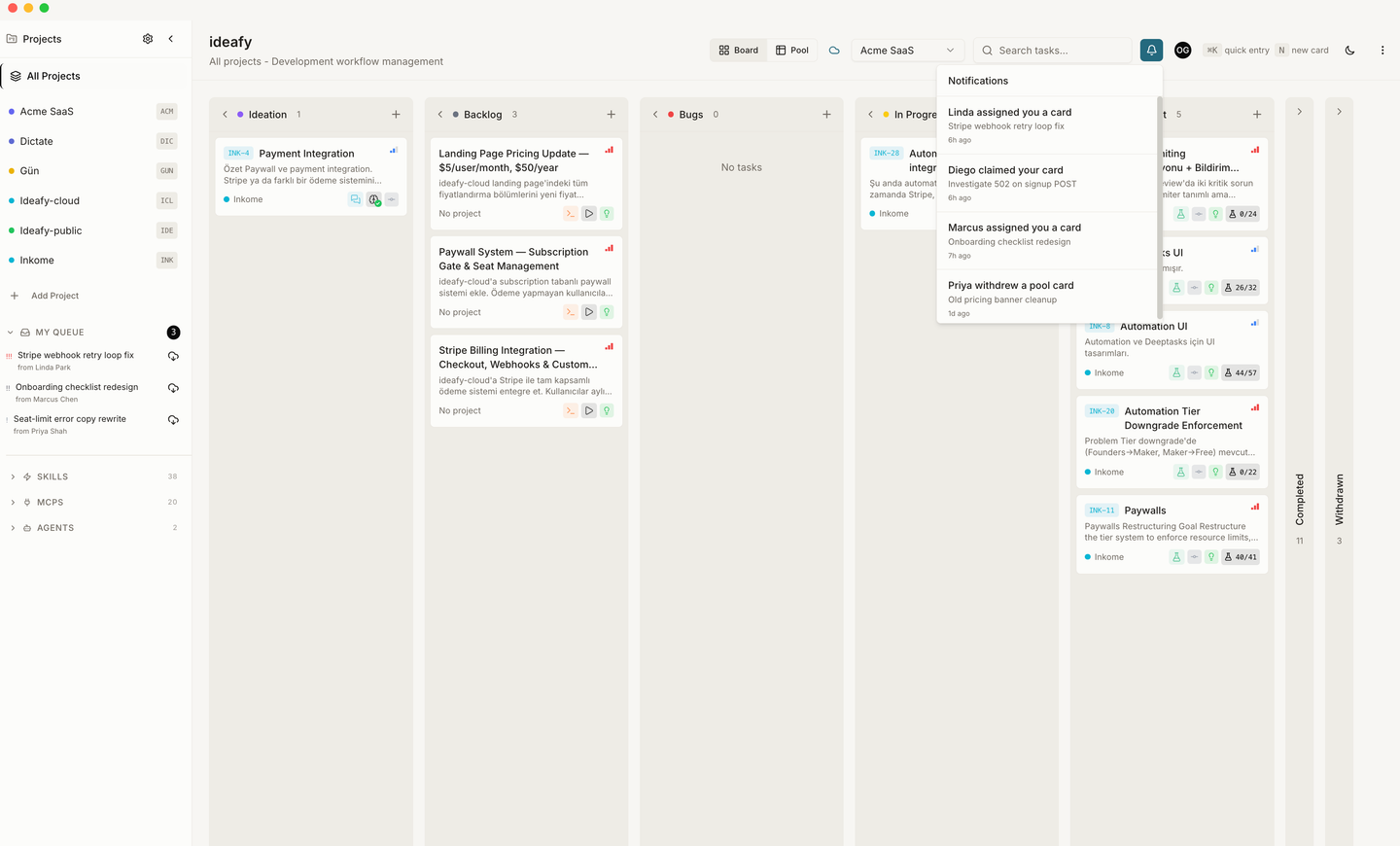
Two different bells. The one described on this page is the team bell — pool state transitions, delivered from Supabase, Team edition only. There's also an activity inbox for AI work that finished on your own machine, which works in every edition and needs no team at all. It's described at the bottom of this page.
What triggers a notification
| Type | Triggered when | Who receives it |
|---|---|---|
pool_assigned | Someone assigns a pool card to you (either on push, or via claim/reassign) | The new assignee |
pool_claimed | Someone claims a pool card that you pushed | The original pusher |
pool_withdrawn | The pusher pulls their own card back out of the pool | The assignee, if any |
That's the full list. Ideafy doesn't notify on every edit, every status change, or every chat message — only on pool state transitions that need your attention.
Where they live
- In-app bell: top bar icon with unread count. Click to open the popover. Notifications are ordered most recent first with relative timestamps ("5m ago", "2h ago"). Click the popover to mark everything as read
- Database:
notificationstable in Supabase, with columnsrecipient_user_id,team_id,type,title,message,reference_id,actor_user_id,actor_name,is_read,created_at - Email: team invites go through Resend; pool notifications are in-app only by default — no email for every claim/assign, because that noise adds up fast
Real-time delivery
The notification bell subscribes to Supabase Realtime on the notifications table. New rows appear in the popover within a second or two of being inserted. If Realtime is unavailable (network, connection drop), the bell falls back to a 30-second polling loop — you still see notifications, just with a longer delay.
Marking as read
Clicking the bell popover marks all visible notifications as read in bulk (PUT /api/team/notifications). There's no per-notification mark-as-read — the assumption is that if you've looked at the list, you've processed it.
If you want to mark just one as read, click on it to navigate to the referenced card; the click both opens the card and marks the notification read.
Dismissing notifications
There's no dismiss / delete action. Notifications are kept indefinitely in the database, but once read, they don't show up in the unread count. Older read notifications are still visible in the popover if you scroll down.
Notification from Ideafy itself
Other than pool-state notifications, Ideafy also sends:
- Email from Resend: team invitation emails, account verification emails, password reset emails. Triggered by the Supabase auth flow, not by the notifications table
- In-app banner: subscription state warnings (trial ending, past due, expired). These are not in the notifications table — they're a separate UI element rendered from the subscription status directly
When notifications feel noisy
If you're getting too many assignment notifications (maybe a teammate is batch-assigning twenty cards to you at once), there are two tools:
- Mute a team from Settings → Team → [pick team] → Mute notifications. You keep the bell indicator but don't get real-time pings
- Leave the team if the noise is persistent and structural (see Team overview)
What notifications don't tell you
- Status changes on cards not in your queue
- Edits to cards you pushed (even major ones)
- Conversations happening on pool cards
- Comments by other agents
These intentionally don't trigger notifications — they'd turn the bell into a firehose. If you care about a specific card, open it and check directly.
Activity inbox for local AI work
The team bell answers what did somebody else do. The activity inbox answers what finished while I was away — a persistent list of completed AI work on this machine. It needs no team, no Supabase, and no sign-in; it works in the Public edition.
It exists because AI work is long. You kick off an autonomous run, switch to another card or another app, and come back with no idea whether it finished, when, or what it produced. Running processes already show up live; this is the history after they stop.
Entries are recorded for each kind of AI work that completes:
| Group | Types |
|---|---|
| Phase work | opinion, plan, implementation |
| Runs | autonomous, quickfix |
| Chat, per tab | chat-detail, chat-opinion, chat-solution, chat-tests |
| Other | apply, sync, team |
Three design choices worth knowing:
- Short work doesn't get an entry. Anything under a minute is skipped — a toast already tells you it's done, and inbox rows for two-second completions would only bury the runs you actually walked away from.
- A repeat run replaces the previous entry rather than stacking. Each
(card, type)pair keeps one visible row; the run it displaced moves into that row's history, up to ten deep. So a card you've run autonomously six times is one row you can expand, not six rows to scroll past. - A failed write is silently swallowed. The inbox is observability, not part of the critical path — a broken insert must never break the AI flow that just succeeded.
Prev: My Queue Next: Remote device Up: User guide index