Team settings
Team-level configuration. Only visible when you're signed in and a member of at least one team. Opens from the sidebar (team switcher → Team settings) or the user menu.
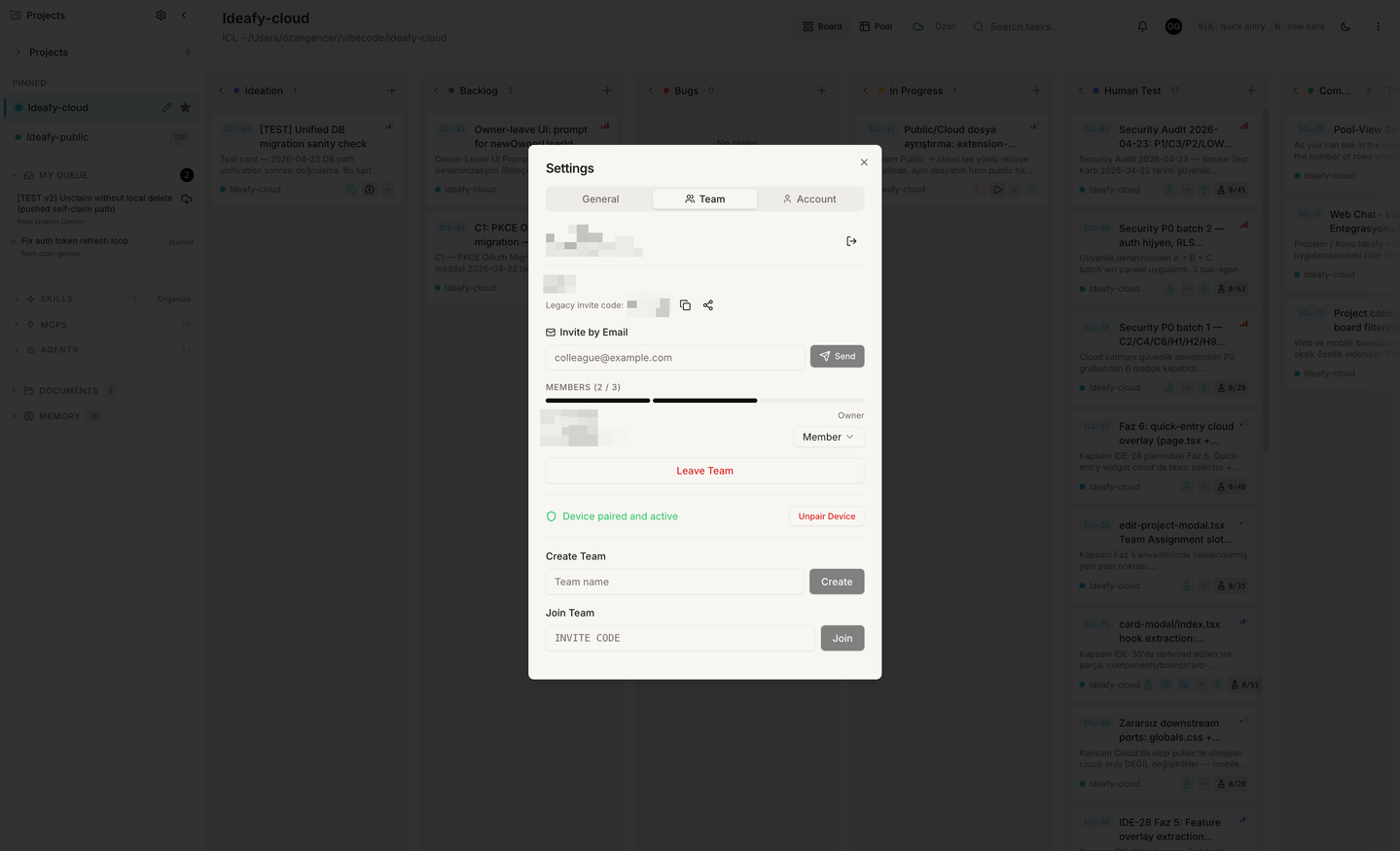
Team name
Display name for the team. Editable by owner or admin. Changing it updates the sidebar label and anywhere else the name is shown.
Invite code
The 6-character code used to join the team. Displayed in full with a Copy button. Share it with teammates directly, or use the invite-by-email flow just below.
The code doesn't rotate automatically. If a teammate's account is compromised, the only way to invalidate an invite code is to delete and recreate the team — which is why the email invite flow is preferred for most teams.
Invite by email
Enter a recipient email → click Send. Ideafy composes a Resend email with the join link embedded and sends it to the recipient. The recipient signs up (if needed), clicks the link, and lands in the join flow with the code pre-filled.
Invitations don't create pending member rows — until the recipient actually clicks the link, they're not in the team. Seat check runs at join time, not at invite time.
Members list
Table of all current members with:
- Display name
- Role:
owner/admin/member - Joined date
- Last active (relative timestamp)
Owners and admins can:
- Change role — Promote a member to admin, or (owner-only) promote an admin to owner. Promoting to owner doesn't demote the existing owner; a team can have multiple owners
- Remove — Kick the member from the team. They lose access immediately. Their local cards are untouched
Members can't manage other members. They can only leave (Leave team button at the bottom).
Seat status
A compact line showing current / max seats, e.g., "4 / 10 seats used". If you're on trial, it shows "X / 5 (trial)". Clicking Manage seats takes you to the Stripe customer portal. See Stripe checkout & portal.
Device manager (Team edition, opt-in)
Lists paired devices with:
- Device name (e.g., "ozan's Mac")
- Device ID (truncated)
- Status:
pending/approved/revoked - Last heartbeat (relative)
Owners and admins can approve pending devices and revoke approved ones. Revoking a device immediately stops it from claiming jobs. See Remote device.
Billing
Owner-only section showing:
- Current plan (Trial / Monthly / Annual)
- Subscription status (see Subscription states)
- Current period end (for paid plans)
- Manage subscription button → Stripe customer portal
- Refresh status button → force re-read of the subscription row from Supabase (useful after a checkout)
Admins and members don't see the billing section at all — their settings view is simpler.
Danger zone
- Leave team (everyone): Leaves the team. If you're the last owner, the team is deleted with all pool cards and notifications. Confirmation required
- Delete team (owner only): Deletes the team outright. Owner's explicit destructive action, confirmation required. Cloud-synced cards are removed; local cards on every member's machine are unaffected
Prev: Project settings Next: Ship a feature from Ideation to Completed Up: User guide index